Sony Ericsson XPERIA X8

Sony Ericsson declared a new Android-based device, the Xperia X8 Smartphone. You can communicate with your friend and loving one through the Xperia X8. You can get pleasure of the latest video clips on the 3 inch screen. Enjoy music through the 3.5 mm jack in the mobile. It was announced by Sony Ericsson that its X8 will be available in the Indian market at the beginning of the next month. The X8 is considered to be a mid-range handset that is based on Android.

The X8 features a 3-inch display and boasts of an excellent 3.2MP camera. The mobile device will take advantage of the four corner UI that can be found on the X10 Mini. It was confirmed by the marketing head of Sony Ericsson’s India that Android-based handsets will get Android 2.1 update in Q3, 2010. It should be said that the update to Android 2.1 will be available with 720p video recording support.

Size: Dimensions 99 x 54 x 15 mm
Weight: 104 g
Display: 320 x 480 pixels, 3.0 inches
OS Android OS, v1.6

Its priced around 11,000-15,000 rupees, which is less than x10mini.
Though v1.6 of android is a bit out dated, this is a good pricing for the mid range mobile phone market.

The company stated, “Xperia smartphones add best in class entertainment on top of smartphone fundamentals such as apps, maps, email and fast Internet to create the most entertaining smartphones. The Xperia X10 is the flagship of the Xperia collection and has an 8.1 megapixel camera and 4-inch screen for best in class multimedia creation and viewing. Signature applications such as Mediascape and Timescape help you to organize content and bring your multimedia and communication alive.”

CHOOSE A RIGHT CAREER

After completion of their academics many talented individuals simply take decisions without thinking about the further consequences & future aspirations, the corporate sectors attract individuals with good packages & comfort facilities compelling individuals to take up their first job, but if the individual chooses the job which is not of his/her career interest/choice there wont be any Job satisfaction. As a individual join in the job which is based upon his/her career interests, it leads to successful career, career growth & profitable to the company.

Sometimes individuals choose Engineering,Medicine as their interest in the field ,but some simply choose them as their fathers aim which he tries to force on his child the individual pursue it as his career choice without thinking of the consequences,with a nil knowledge of his aspirations ,after they complete the course and step into the big world they realize that its not their cup of tea, to tell in other way individual feels dissatisfaction it means that he choose a wrong career.Dissatisfaction creates many financial hurdles, sometimes the individual need to work to fulfill his financial needs or his daily wants.When an opportunity is given to work for the career he is interested he should never take a back-step he should try to proceed so that he can enjoy his work instead of feeling burden or discomfort, there itself your talent comes out,you’ll complete the given task with passion and creativity it its the work you are interested to do.

If the food is delicious it gives good taste ,similarly if you do good in your work you’ll find it successful & worthwhile. A higher position or money may try to change your path, but still you should opt the career which is completely suitable for you,then itself you can fulfill your responsibilities perfectly & accurately. If you try to do a task which is not interesting for you it may lead others to complaint or comment on your way of work,you loose interest to perform any task you might not take it as a big hurdle but it leads to your carelessness towards work& make companies targets look big and stressful.

Usually people start their career in a lower level position and slowly try to use their skills & talent to get to the higher positions in the company. When a opportunity is given we should try to enhance our skills and knowledge which also leads to the economical growth of your company. We to prove ourselves that we are capable of doing any task by showing better results in the company. Choosing a right career leads to individuals career growth & company growth as well….

Home Energy Management Solution

Cisco has come up with another smart product “Home Energy Management Solution(HEM)”. The Home Energy Management (HEM) solution provides updated energy and budgeting information to help you optimize home energy use.

In India cost of electricity is on an increasing path for last few years and there seems to be no slowing doing in the rise of electricity prices. Just check your home electricity bill what it used to be 5 years ago and what it is now. Its more than double!

Cisco’s HEM provides up to date power and bill information to make your home energy consumption efficient. Using the HEM, you can get instant information and control over your home energy consumption. The core of the HEM is the Cisco Home Energy Controller, it’s a countertop touchscreen monitor equipped with various networking capabilities and exclusive applications for energy management. The screen provides monitoring information as well as control over energy loads of supported thermostats, heating, ventilating, air conditioning (HVAC) systems, pool pump, televisions and home entertainment centers, computers, intelligent sockets and power strips, and smart appliances such as refrigerators and water heaters. All of these are done through wireless secure connections, so there’s no need for additional wiring and installation cost.

The HEM solution allows customers to perform tasks such as:
● View data on energy use
● Control thermostats for HVAC systems
● See tips on ways to save energy
● Manage a profile for participation in demand-response programs
● View customer account and billing information
● Control individual home appliances

For more information on Cisco home energy management solutions: http://www.cisco.com/go/HEM

Yuva Engineers in Media

Yuva Engineers Awards Distribution

Hyderabad (May 25, 2010) – Yuva Engineers is Pleased to announce that “Yuva Engineer Awards, 2010” were presented to Young engineers by Sri DHARMANA PRASADA RAO Garu, Honorable Minister for Revenue, Relief and Rehabilitation, Govt. of Andhra Pradesh.

These awards in today’s scenario of the state of science and technology,  prove to be one stepping stone towards the uplifting of the standards of the research orientation that the Students of science and technology today have.

Yuva Engineers Announcement

Yuva Engineers today announced the winners of its annual Awards, which recognize young Engineers, products and Ideas. Recipients will be honored at an awards ceremony for which details will be announced soon.

The Awards acknowledge young engineering minds that have given time and resources to make ours a better society. Winners were selected by their peers through voting and by a panel of judges in the respective fields. Technical papers were evaluated on their ideas, innovation, scale of applications, scope of deployment and comprehensiveness.

If awards are not announced in a particular segment, that means we have not received submissions that fit to the criteria or not upto mark.

Aeronautical Engineering:

Technical Paper Title: Air Accidents and latest Investigation Techniques
Authors: G. Padmaraju, Syed Sazeeth , 2nd BTech, Aeronautical
College: Malla Reddy College of Engineering and Technology, Dhulapally, Medchal, Hyderabad

Communications Engineering:

Technical Paper Title: Design and development of stacked planar high gain antenna for wireless communication
Authors: Amol Kadam,Prathamesh Indulkar, Atul borate & Rohit jadhav, 4th Year, Electronics and Telecommunications
Guide: Prof. V. P. Patil
College: SMT Indira Gandhi College of Engineering

Technical Paper Title:  REDTACTON
Authors: S. Lakshmi Lavanya & S. Kusuma, 1st B.Tech, ECE
College: Prakasam Engineering College – Kandukur

Computer Science Engineering:

Technical Paper Title: SURFACE COMPUTING
Authors: B.SINDHU & N.SNEHA, 1st BTech, CSE
College: Prakasam Engineering College, Kandukur

Technical Paper Title: Energy Saving through the use of Variable Air Volume systems and PID Controllers
Authors:Anushka Gulati, 2nd Year BTech,CSE
College: Indira Gandhi Institute of Technology, Guru Gobind Singh Indrapastha University, Kashmere Gate, New Delhi

and

Technical Paper Title: Satellite-Based Tsunami and Earthquake Early Warning System
Authors: CH.SANDHYA & M.ARPITHA, 2nd BTech, CSE
College: Sai Spurthi Institute of Technology, Sathupalli, Khammam

Technical Paper Title: Automated 3D Building Reconstruction using LIDAR TECHNOLOGY
Authors: Ajinkya.k.Sawant & Hiral.P.Parekh, 3rd Year BTech, Electronics and Telecommunication Engineering
College: Vivekanand Educational Society’s Institute of Technology

Technical Paper Title: Portable Mail Profile for Outlook
Authors: P.MAYURI & K.PRASANNA, 4th BTech, CSE
College: Prakasam Engineering College, Kandukur

Electrical Engineering

Technical Paper Title: A Solution to Remote Detection of Illegal Electricity Usage via Power Line Communications
Authors: G.RAMYA & D.SOWJANYA, 2nd BTech, EEE
College: VASAVI COLLEGE OF ENGINEERING, IBRAHIMBAGH, HYDERABAD

and

Technical Paper Title: NUCLEAR ENERGY
Authors: MARIA MASOOD, 2nd BTech, EEE
College: SHADAN WOMEN’S COLLEGE OF ENGINEERING AND TECHNOLOGY.

Technical Paper Title: Power-System Frequency and Stability Control using Decentralized Intelligent Loads
Authors: V.Suneetha  & A.Shobarani, 3rd BTech, EEE
Guide: Prof.Meeravali
College: Prakasam Engineering College, Kandukur

Electronics Engineering

Technical Paper Title: MICROCONTROLLER BASED  DRIP IRRIGATION SYSTEM
Authors: P.Ashok & K.Ashok, 1st BTech, ECE
College: Prakasam Engineering College, Kandukur

Technical Paper Title: HAPTIC TECHNOLOGY
Authors:Daksha Yemala & Devulapalli Visishtha, 2nd Year BTech, Electronic & Telematics(ETM)
College: G.Narayanamma Institute of Technology and science(women), Shaikpet, Hyderabad

Technical Paper Title: ARTIFICIAL NEURAL NETWORK FOR HOME SECURITY SYSTEM(ANNHSS)
Authors:Anil Naik, 3rd Year BTech,Electronics and Telecommunications
College: Sardar Patel Institute of Technology, Mumbai University

Information Technology

Technical Paper Title: Secure Routing Protocols for Wireless AdHoc Networks
Authors:C.Prasanna lakshmi & K.Yasasvi, 3rd BTech,IT
College: Sri Venkatesa Perumal College of Engineering and Technology

Technical Paper Title: A model to implement text mining on social networking sites
Authors:Patel Pratik M, 2nd year BTech,IT
College: Shah and Anchor Kutchhi Engineering College, Chembur(E), Mumbai

and

Technical Paper Title: AVATAR-The Cast of Motion Capture Technology
Authors: D.Sneha Lakshmi & Y.Lakshmi Praveena , 2nd BTech, IT
College: Prakasam Engineering College, Kandukur

Mechanical Engineering

Technical Paper Title: SENSOTRONIC BRAKE CONTROL
Authors:L.NAGABHUSHAN REDDY & S.RAJESH, 3rd year BTech, Mechanical
College: VNR Vignana Jyothi Institute of Engineering and Technology

Technical Paper Title: AGRO MACHINE
Authors:Ravipati Bharadwaj, 2nd BTech,Mechanical
College: JNTU college of Engineering, Anantapur

Winners will be informed about the awards ceremony in due course. All the participants will get participation certificates in a weeks time.  Thank you one and all in making this initiative a grand success.

SENSOTRONIC BRAKE CONTROL – L.NAGABHUSHAN REDDY & S.RAJESH

Technical Paper Title: SENSOTRONIC BRAKE CONTROL

Authors:L.NAGABHUSHAN REDDY & S.RAJESH, 3rd year BTech,Mechanical

College: VNR Vignana Jyothi Institute of Engineering and Technology

Abstract

Sensotronic Brake Control (SBC™) works electronically, and thus faster and more precisely, than a conventional hydraulic braking system. As soon as you press the brake pedal and the sensors identify the driving situation in hand, the computer makes an exact calculation of the brake force necessary and distributes it between the wheels as required. This allows SBC™ to critically reduce stopping distances. SBC™ also helps to optimise safety functions such as ESP®, ASR, ABS and BAS.

With Sensotronic Brake Control, electric impulses are used to pass the driver’s braking commands onto a microcomputer which processes various sensor signals simultaneously and, depending on the particular driving situation, calculates the optimum brake pressure for each wheel. As a result, SBC offers even greater active safety than conventional

brake systems when braking in a corner or on a slippery surface. A high-pressure reservoir and electronically controllable valves ensure that maximum brake pressure is available much sooner. Moreover, the system offers innovative additional functions to reduce the driver’s workload. These include Traffic Jam Assist, which brakes the vehicle automatically in stop-and-go traffic once the driver takes his or her foot off the accelerator. The Soft-Stop function – another first – allows particularly soft and smooth stopping in town traffic.
Introduction
When drivers hit the brake pedal today, their foot moves a piston rod which is linked to the brake booster and the master brake cylinder. Depending on the pedal force, the master brake cylinder builds up the appropriate amount of pressure in the brake lines which – in a tried and tested interaction of mechanics and hydraulics – then presses the brake pads against the brake discs via the wheel cylinders.

By contrast, in the Mercedes-Benz Sensotronic Brake Control, a large number of mechanical components are simply replaced by electronics. The brake booster will not be needed in future either. Instead sensors gauge the pressure inside the master brake cylinder as well as the speed with which the brake pedal is operated, and pass these data to the SBC computer in the form of electric impulses. To provide the driver with the familiar brake feel, engineers have developed a special simulator which is linked to the tandem master cylinder and which moves the pedal using spring force and hydraulics. In other words: during braking, the actuation unit is completely disconnected from the rest of the system and serves the sole purpose of recording any given brake command. Only in the event of a major fault or power failure does SBC automatically use the services of the tandem master cylinder and instantly establishes a direct hydraulic link between the brake pedal and the front wheel brakes in order to decelerate the car safely.

The central control unit under the bonnet is the centrepiece of the electrohydraulic brake. This is where the interdisciplinary interaction of mechanics and electronics provides its greatest benefits – the microcomputer, software, sensors, valves and electric pump work together and allow totally novel, highly dynamic brake management:

In addition to the data relating to the brake pedal actuation, the SBC computer also receives the sensor signals from the other electronic assistance systems. For example, the anti-lock braking system (ABS) provides information about wheel speed, while Electronic Stability Program (ESP®) makes available the data from its steering angle, turning rate and transverse acceleration sensors. The transmission control unit finally uses the data highway to communicate the current driving range. The result of these highly complex calculations is rapid brake commands which ensure optimum decelerationand driving stability as appropriate to the particular driving scenario. What makes the system even more sophisticated is the fact that SBC calculates the brake force separately for each wheel.

SENSOTRONIC BRAKE CONTROL – THE BRAKES OF THE FUTURE

Sensotronic Brake Control (SBC) is the name given to an innovative electronically controlled brake system which Mercedes-Benz will fit to future passenger car models. Following on from the Mercedes innovations ABS, ASR, ESP® and Brake Assist, this system is regarded as yet another important milestone to enhance driving safety. With Sensotronic Brake Control electric impulses are used to pass the driver’s braking commands onto a microcomputer which processes various sensor signals simultaneously and, depending on the particular driving situation, calculates the optimum brake pressure for each wheel. As a result, SBC offers even greater active safety than conventional brake systems when braking in a corner or on a slippery surface. A high-pressure reservoir and electronically controllable valves ensure that maximum brake pressure is available much sooner. Moreover, the system offers innovative additional functions to reduce the driver’s workload. These include Traffic Jam Assist, which brakes the vehicle automatically in stop-and-go traffic once the driver takes his or her foot off the accelerator. The Soft-Stop function – another first – allows particularly soft and smooth stopping in town traffic.

Mechatronics – a new term is gaining popularity within the automotive industry and is rapidly developing into the catchword of a quiet technological revolution which in many fields stands century-old principles on their head. Mechatronics brings together two disciplines which in many cases were thought to be irreconcilable, namely mechanics and electronics.

Hence automobile functions which hitherto worked purely mechanically and partly with hydraulic assistance will in future be controlled by high-performance microcomputers and electronically controllable actuators. These either replace the conventional mechanical components or else enhance their function. The mechatronic interplay therefore opens up hitherto inconceivable possibilities to further raise the safety and comfort levels of modern passenger cars. For example: it was only thanks to mechatronics that an electronically controlled suspension system which instantly adapts to prevailing conditions when driving off, braking or cornering — thus providing a totally new driving experience — became a reality. In 1999 Mercedes-Benz launched this system under the name Active Body Control (ABC) in the flagship CL coupé, thereby signalling the advent of a new era of suspension technology.

This electronically controlled suspension system will quickly be followed by the electronic brake system: Mercedes-Benz and Bosch have teamed up on this benchmark development project which will shortly enter into series production at the Stuttgart automobile brand under the name Sensotronic Brake Control — or SBC for short.

It turns the conventional hydraulic brake into an even more powerful mechatronic system. Its microcomputer is integrated into the car’s data network and processes information from various electronic control units. In this way, electric impulses and sensor signals can be instantly converted into braking commands, providing a marked safety and comfort gain for drivers.

Brake pedal: electronics instead of a vacuum

To turn to the technical side: when drivers hit the brake pedal today, their foot moves a piston rod which is linked to the brake booster and the master brake cylinder. Depending on the pedal force, the master brake cylinder builds up the appropriate amount of pressure in the brake lines which – in a tried and tested interaction of mechanics and hydraulics – then presses the brake pads against the brake discs via the wheel cylinder.

In the Mercedes-Benz Sensotronic Brake Control, by contrast, a large number of mechanical components are simply replaced by electronics. The brake booster will not be needed in future either. Instead sensors gauge the pressure inside the master brake cylinder as well as the speed with which the brake pedal is operated, and pass these data to the SBC computer in the form of electric impulses.

To provide the driver with the familiar brake feel engineers have developed a special simulator which is linked to the tandem master cylinder and which moves the pedal using spring force and hydraulics. In other words: during braking the actuation unit is completely disconnected from the rest of the system and serves the sole purpose of recording any given brake command. Only in the event of a major fault or power failure inside the 12V vehicle battery does SBC automatically use the services of the tandem master cylinder and instantly establishes a direct hydraulic link between the brake pedal and the front wheel brakes in order to decelerate the car safely.

Control unit: pressure modulators for each wheel

The central control unit under the bonnet is the centrepiece of the electrohydraulic brake. This is where the interdisciplinary interaction of mechanics and electronics provides its greatest benefits – the microcomputer, software, sensors, valves and electric pump work together and allow totally novel, highly dynamic brake management:

In addition to the data relating to the brake pedal actuation, the SBC computer also receives the sensor signals from the other electronic assistance systems. For example, the anti-lock braking system (ABS) provides information about wheel speed, while ESP® makes available the data from its steering angle, turning rate and transverse acceleration sensors. The transmission control unit finally uses the data highway to communicate the current driving range. The result of these highly complex calculations is rapid brake commands which ensure optimum deceleration and driving stability as appropriate to the particular driving scenario. What makes the system even more sophisticated is the fact that SBC calculates the brake force separately for each wheel.

The high-pressure reservoir contains the brake fluid which enters the system at a pressure of between 140 and 160 bar. The SBC computer regulates this pressure and also controls the electric pump which is connected to the reservoir. This ensures much shorter response times than on conventional brake systems. Yet another advantage: full braking power is available even when the engine is switched off. The hydraulic unit mainly comprises four so-called wheel pressure modulators. They mete out the brake pressure as required and pass it onto the brakes. In this way it is possible to meet the microcomputer’s stipulations while each wheel is slowed down separately in the interests of driving stability and optimum deceleration. These processes are monitored by pressure sensors inside the wheel pressure modulators.

Emergency braking: stopping distance reduced by up to three per cent

The main performance characteristics of Sensotronic Brake Control include the extremely high dynamics during pressure build-up and the exact monitoring of driver and vehicle behaviour using sophisticated sensors. Mercedes-Benz is thus moving into new dimensions of driving safety. Take the example of the emergency brake: SBC already recognises the driver’s rapid movement from the accelerator onto the brake pedal as a clue to an imminent emergency stop and responds automatically: with the aid of the high-pressure reservoir, the system increases the pressure inside the brake lines and instantly presses the pads onto the brake discs so that they can get a tight grip the moment the driver steps onto the brake pedal. As a result of this so-called prefilling of the brake system, the stopping distance of an SBC-equipped sports car from a speed of 120 km/h is cut by around three per cent compared to a car featuring conventional braking technology.

Thanks to electrohydraulic back-up, the performance of Brake Assist is also improved further. If this system issues the command for an automatic emergency stop, the quick pressure build-up and the automatic prefilling of the wheel brakes leads to a shorter braking distance.

Driving stability: precise braking impulses for perfect ESP® performance

It is not just in emergency braking that Sensotronic Brake Control proves its worth, but also in other critical situations – for example, when there is a risk of swerving. Under such conditions, the system interacts with the Electronic Stability Program (ESP®) which keeps the vehicle safely on course through precise braking impulses at all wheels and/or by reducing engine speed. SBC once again offers the benefits of greater dynamics and precision: thanks to the even faster and more accurate braking impulses from the SBC high-pressure reservoir, ESP® is able to stabilise early and comfortably a vehicle which is about to break away.

This is evident, for example, from the results of the VDA lane-change test which suspension engineers use to simulate a quick obstacle-avoidance manoeuvre and to demonstrate the high capabilities of the Electronic Stability Program. In conjunction with SBC, ESP® works even more effectively and significantly reduces vehicle swerving through quick and precise braking impulses.

At the same time the driver’s steering effort is reduced. Thanks to SBC and ESP® he or she will have even less difficulty keeping the car on course.

Copyright DaimlerChrysler AG

With Sensotronic there is no need for ESP intervention when braking in a curve.

Braking in a curve. Left: conventional. Right: with SBC.

Notice the unequal braking force, smaller lateral force, better stability and alignment with SBC.

Braking in corners: greater safety thanks to variable brake force distribution

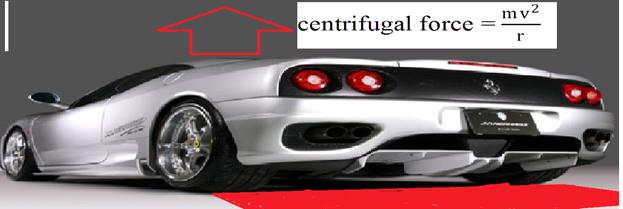
Even when braking in corners, SBC also offers more safety than a conventional brake system. This is where the variable and targeted brake force distribution is of particular advantage to actively influence the car’s compliance steer.

While conventional brake systems always mete out the brake pressure equally to the inner and outer wheels, SBC offers the possibility of assigning brake forces in a way appropriate to the situation. Hence the system will automatically increase the brake pressure at the outer wheels because the higher vertical forces also allow them to transfer greater brake forces. At the same time the brake forces at the inner wheels are reduced to provide the higher cornering forces needed to stay on course. The result is a more stable braking behaviour along with optimum deceleration values.

With the innovative Sensotronic Brake Control Mercedes engineers still stick to the proven principle of a variable brake force control for the front and rear axles. They program the system in such a way that, when slowing down from a high speed, the larger part of the brake force continues to act on the front axle. This prevents a potentially hazardous overbraking of the rear axle. Again SBC is capable of adapting to the prevailing situation. At low speeds or during partial braking, the system automatically increases the brake force share at the rear axle to improve brake system response and achieve even wear and tear of the brake pads.

Comfort: no pedal vibrations during ABS operation

Both the separation of the SBC pedal from the rest of the brake system and the proportional pressure control using mechatronics serve to increase brake comfort – particularly during sharp deceleration or when the anti-lock braking system is operational. The usual vibration of the brake pedal when ABS sets in does not occur, which, Mercedes engineers have found, is not only a comfort feature of the new system but also offers measurable safety benefits. Their research in DaimlerChrysler’s Berlin driving simulator has revealed that almost two thirds of all drivers are startled when ABS pulsation sets in: they do not increase the brake force further and are even prone to taking their foot off the brake pedal for a short while, thereby lengthening the stopping distance of their vehicle – in the driving simulator by an average of 2.10 metres – 7 feet – during ABS braking from 60 km/h – 37 MPH – on a snow-covered road surface.

SBC add-on functions: support systems to reduce driver strain

Sensotronic Brake Control offers additional advantages in everyday driving situations – when slowing down ahead of traffic lights, in the wet, in traffic jams or hill starts:

The so-called Soft-Stop function of the SBC software ensures particularly gentle and smooth stopping which provides significant comfort benefits particularly around town when you need to slow down frequently for traffic lights. All this is made possible by the higher-precision pressure control thanks to mechatronics. On a wet road surface the system metes out short brake impulses at regular intervals to ensure that the water film on the brake discs dries off and that SBC can always operate with optimum effectiveness. This automatic dry-braking function is activated at regular intervals when the car’s windscreen wipers are running. The driver does not even notice these ultra-precise brake impulses.

The Sensotronic Brake Control also incorporates a so-called Traffic Jam Assist function, which is activated using the cruise control stalk while the car is stationary. The benefit is that during stop-and-go traffic drivers only need to use the accelerator pedal; once they take their foot off the accelerator, SBC slows down the car to standstill at a steady rate of deceleration. The Traffic Jam Assist facility can remain operational up to 60 km/h – 37 MPH – and switches off automatically at higher speeds.

On hills or steep drives the Sensotronic Brake Control Drive-Away Assist prevents the car from rolling backwards or forwards – stepping onto the brake pedal quickly but sharply is all it takes to activate the brake. If the driver accelerates, the Drive-Away Assist releases the brake and allows the car to drive off smoothly.

The future: SBC paving the way for automatic guidance systems

The advent of electronics in brake technology opens up new and promising opportunities to Mercedes engineers – and not only in the disciplines of safety and comfort. Thanks to SBC they have also moved a considerable way closer to the realisation of their long-term objective, namely to be able to automatically guide the cars of the future along the roads with the aid of video cameras, proximity radar and advanced telematics. For such autonomous vehicle guidance, the experts need a computer-controlled brake system which automatically acts on the instructions of an electronic autopilot and stops the car safely.

The concept for the pressure sensor

The major requirements of a pressure sensor for X-by-Wire applications, as previously mentioned, are high precision and reliability as well as multi functionality and flexibility, features strongly desired in modern sensor design. These requirements have heavily influenced the design choices. In order to enhance the precision it has been conceived a silicon micro machined piezo-resistive pressure sensor chip with two different sensitivities: a higher one in a low-pressure range (0 to 30 bar), where often an elevated resolution is required, and a lower one at higher pressures (up to 250 bar). Thus, with one single membrane chip, practically two sensors are obtained. Moreover, as it will be explained further on more in details, the transition between the two sensitivity levels determines an area with particularly interesting characteristics that could be used to recalibrate the sensor from offsets without having to remove it from the system where it normally operates and mount it on a reference bench. Somehow what could be called a “self-recalibration” ability. Enhancing the reliability and the therefore the availability of a sensor needs stability in the components and sensor health monitoring strategies. This latter is possible through an integrated digital electronic that would hence allow self-test functions. Key point of these procedures is the previously mentioned recalibration area, which potentially allows monitoring offsets with a precision up to 0.15 % full scale (FS) without need on integrated actuators and the relative control electronic. A digital electronic can also be designed, without major difficulties, to integrate a controller for networking (Controlled Area Network, for example), consequently enhancing the capabilities and the flexibility of the sensor.

2.1 Two levels sensitivity and recalibration

The transduction of the physical quantity, pressure in the specific case, into an electrically measurable figure is performed though piezo-resistive elements implanted on the surface of the of the silicon chip. This type of transducers is sensitive to the stresses in the two coordinates defined with respect to the plane where the elements are implanted in the chip (8). The stresses on the piezo-resistors induce changes in their resistance that can be detected with rather high accuracy as unbalance of a Wheaston bridge. The stresses on the chip surface depend on the geometrical characteristics of the latter and on the forces deriving from the applied pressure (9). Therefore transducers are  usually placed in such a way to have maximum response to the pressure changes and in order to obtain a constant sensitivity. Normally small variations in the sensitivity are undesirable as they complicate the calibration process and often reduce the sensor accuracy. On the contrary, in the presented design, a drastical change in the sensitivity as been conceived through a major variation of the sensor geometry. This characteristic has been exploited to realize the two sensitivity ranges.

The sensor consists of a membrane structure at which centre is placed a cylindrical structure (a centreboss membrane) as shown in fig. 1. As the pressure is applied, from top, the membrane will move freely downward: this determines a rather sensitive sensor response, which will continue until 30 bar is reached. At this point the cylinder will enter into contact with the silicon bulk plate. Consequently the geometrical structure of the sensor will almost instantly change: the membrane will not be able to move freely any more and will behave more like a ring fixed at the two sides. The stiffness of the structure will significantly increase, thus the building up of stresses due to pressure will reduce and thereby the sensitivity will be roughly of a four factor smaller than the one between 0 and 30 bar. This determines the low sensitivity range that is specified up to 250bar. Fig. 2 summarises graphically what has been here above described.

Moreover the cylindrical central structure makes the membrane fairly robust and resistant to over pressures.

In silicon the elastic behaviour, opposed to the plastic one, is dominant. Therefore silicon withstands stresses with almost unchanged characteristics: this is what makes it a good material for sensors. Thus it can be expected that in the described design the cylindrical central structure and the respective contact area on the silicon bulk will remain stable. Consequently it can also be expected that the pressure needed to generate the contact between the two parts will remain constant through the sensor lifetime, thereby the transition between the two sensitivity levels will take place always at the same pressure: in fig. 2 this is defined as Recalibration point.

Now, gathering this information together, a contact point is obtained, which is: mechanically determined, constant and independent from the electrical characteristics of the transducers. Therefore, if it is possible to evaluate a procedure to determine this point though the normal sensor operation, than a monitoring and correction of electrical instabilities such as offset drifts can be achieved without need of a reference sensor or external action: a simple example of how this could be obtained will be given in the paragraph 2.2. Moreover, the recalibration principle makes no use of internal actuation system, no actuator control or extra technology is therefore needed: the sensor integrates what can be called a passive recalibration and self-test principle. Furthermore such procedure could enable to avoid long and costly temperature calibrations. Least but not last, the contact or recalibration point is determined through the sensor technology and can be so defined to be different from sensor to sensor. In the case the sensor is operating in a network environment where more of these sensors with different contact pressures are present, it is possible to obtain more recalibration points, potentially increasing the sensor accuracy.

2.2 The integrated digital electronic and the self-test

Digital electronic is often thought to be expensive for pressure sensors. This argument usually does not consider all the potential advantages that it can bring, either because of the difficulty to have a complete overview on them or as a rather significant research effort is needed to be able to exploit them completely. Moreover costs of digital electronic are on the long term continuously decreasing.

In the presented design it has been chosen to make use of a digital electronic in order to implement monitoring and correction strategies in the sensor. Activities are being carried out to investigate all possible failures of the sensor and evaluate their entity, this already at design level.  Hence eliminate through design as much of them as possible, particularly those that cannot be automatically detected by the sensor. On the remainder will be in the first place evaluated methods to individuate the errors (self-test) and, when possible, correct them without the outside intervention (recalibration). A diagram of this procedure is described in fig. 3.

Furthermore network capabilities can be introduced and thereby user tailored functions can be programmed resulting in an enhanced sensor flexibility.

Clearly a complex electronic has not only advantages consideration has to be taken not to introduce further hardware, but also software errors. Central point of the self-test strategies is the previously described “Recalibration point”. The presence of a digital electronic allows performing the drift monitoring and the recalibration internally. A simple example might help the understanding. Lets suppose that the sensor is working in a system where the pressure can rise linearly, namely 250 bar in 8 sec., for simplicity lets also suppose that the sensor has an ideal linear behaviour in the 2 sensitivity ranges (in the real case there will be a linearity error which will ad up to the calculations, on the other hand though the sensor response could be better described by polynomialls of higher order, therefore it has been chosen to stay with the simplest case). During the pressure rise 4 points are sampled through the digital electronic: point one at sensor output around 0 V and the second around 2 V, in the low pressure range, the third at 2.3 V and the fourth at 4 V, in the high pressure one as shown in fig. 4 (a wise choice of the points can influence up to 50% the accuracy with which the recalibration point can be determined). These points are used to define the 2 lines, which intersection will determine the contact voltage. This can be compared with the value stored in the sensor memory at the previous recalibration and, if the difference exceeds the calculation errors, the new value will substitute the old one: the sensor response lines will be adjusted and thereby a recalibration will take place. Key point of this procedure is the dimension of the calculation errors. If the linearity error is not considered, for the reasons previously given, these depend on the sensor A/D converter resolution and the sampling frequency. Therefore, with a 10 bit A/D converter and sampling at 1 kHz a recalibration with approximately a 0.15 % accuracy FS can be obtained. To the reader is left the little mathematic game that takes to the given value.

The sensor design

Defining a concept for a new sensor is no trivial job. Putting this into a realisable design is even more complex and requires a good deal of experience in sensor manufacturing and simulation techniques. The transducer chip design has been conceived in collaboration between EADS (European Aerospace Defence and Space company) Deutschland GmbH and AKTIV SENSOR GmbH, with the contribution of the Technical University of Berlin. The electronic design instead was the result of the cooperation of EADS Deutschland GmbH and ELBAU GmbH.

3.1 The chip design

The major difficulty in the design was to realise the change in the mechanical structure in such a way that the sensor response variation between the two configurations would be possibly sharp, but most of all that the response with respect to the pressure change would be monotonous. If this condition is not fulfilled, there is no one to one correspondence between the transducer response and the applied pressure: there will be different pressures that will produce the same output signal, thereby the sensor will be intrinsically unreliable and therefore unusable. Overcoming this problem means that the piezoresistors (the transducing elements) have to see always increasing stresses with the rising of the pressure. Therefore the choice on the piezo-resistor position on the chip membrane is determinant and with it the results of the simulation. The choice that has been made in the positioning of the piezo-resistive elements can be noted that the stress distribution changes significantly before and after the mechanical contact. Moreover it has been chosen design 90-degree profiles in order to reduce the previously described risk: this implies using anisotropy etching. etching. The results of the dry etching process can be seen in fig. 6.

3.2 The electronic design

The design of the electronic should be maintained to a low level of complexity. Never the less attention should be given to the design in order to be able to implement all the self-test and recalibration features allowed by the design, but at the same time avoiding unnecessary over dimensioning of components that would only reflect itself on an increase of costs. Particular care should be given in taking advantage of the high resolution in the low-pressure range: for example, in the case of a linear analogue or Pulse-Width Modulation (PWM) output is desired, as it normally is in sensor output coding, a high resolution digital to analogue converter is needed. Moreover, in the design is planned: a volatile memory for storing the calibration parameters, a non-volatile one for the programming of the self-test and recalibration algorithms, a PWM module, a CAN module for a bus communication and of course analogue to digital converter to enable the signal processing.  In the first prototype a low level of integration has been chosen to enable more design flexibility, never the less most of the needed functions could be performed by a commercially available ASIC which could be integrated in second stage.
References

http://www.autospeed.com.au/

http://www.whnet.com/4×4/index.html

http://www.mercedes-benz.com/e/default.htm

http://www.howstuffworks.com

Speech Processing, Speech Synthesis & Speech Recognition – S.Akarsh & K.Avinash

Technical Paper Title: Speech Processing, Speech Synthesis & Speech Recognition

Authors:S.Akarsh & K.Avinash, 2nd year BTech,CSE

College: Padmasri Dr.B.V.Raju Institute of Technology, Medak

Abstract:-
Speech recognition is an input system that consists of a microphone and speech recognition software. Speech recognition software is complex. Sounds received via a microphone must be broken down into phonemes; then, a “best guess” algorithm is used to match phonemes and syllables to a database of possible words. To solve speech inconsistencies like accent, volume, pitch, and inflection, male vs. female, sarcasm, and colloquialisms, the software must examine context and word patterns to determine the correct meaning.  This requires an enormous database, which in turn requires a computer with very capable processing speed and memory. Speech recognition will greatly change the way information is input. Ease, convenience, and speed are three advantages to using a microphone instead of a keyboard. Speech recognition technology will have an impact on all careers but especially education.  Business Education teachers must stay abreast of this technology and be willing to adjust their courses to best prepare students.

Introduction:-
Speech recognition will become a primary interface, speech or voice recognition software had to be run separately. Speech will be the primary interface for computers.
Speech recognition
Speech or voice recognition is the technology that allows for computer input via spoken commands.  To use speech recognition, your computer needs a microphone and the proper software.  In this duo, the software is the complex part.  Speech recognition software works by disassembling sound into atomic units (called phonemes) and then piecing them back together.  Phonemes can be thought of as the sound made by one or more letters in sequence with other letters, like th, cl, or dr.  After speech recognition software has broken sounds into phonemes and syllables, a “best guess” algorithm is used to map the phonemes and syllables to actual words. These words are then translated into ideas by natural language processing.   Natural language processing has the ability to process the output from speech recognition software and understand what the user meant. Natural language processing attempts to translate words into ideas by examining context, patterns, phrases, etc.  Natural language processing and speech recognition work together to clear-up vague words or homonyms, i.e. Two, too, and to.
Speech Recognition:-
Understanding of speech by computer: a system of computer input and control in which the computer can recognize spoken words and transform them into digitized commands or text. With such a system, a computer can be activated and controlled by voice commands or take dictation as input to a word processor or a desktop publishing system.

Speech synthesis:-

computer’s imitating of speech: computer-generated audio output that resembles human speech
A computer-controlled recording system in which basic sounds, numerals, words, or phrases are individually stored for playback under computer control as the reply to a keyboarded query.
The process of generating an acoustic speech signal that communicates an intended message, such that a machine can respond to a request for information by talking to a human user. Also known as speech synthesis.
Speech signals:-
Since speech signals are periodic, speech has a Fourier series representation given by a linear circuit’s response to a periodic signal. Because the acoustics of the vocal tract are linear, we know that the spectrum of the output equals the product of the pitch signal’s spectrum and the vocal tract’s frequency response. We thus obtain the fundamental model of speech production.

S9f)=Pt(f)Hv(f)……………..(1)

Here, Hv (f) is the transfer function of the vocal tract system. The Fourier series for the vocal cords’ output,

and is plotted in the left in Figure 1.  If we had, for example, a male speaker with about a 150 Hz pitch(  T≈6.7ms) saying the vowel “oh”, the spectrum of his speech predicted by our model would be as shown on  the right in Figure 1.The model spectrum idealizes the measured spectrum, and captures all the important features. The measured spectrum certainly demonstrates what are known as pitch lines, and we realize from our model that they are due to the vocal cord’s periodic excitation of the vocal tract. The vocal tract’s shaping of the line spectrum is clearly evident, but difficult   to discern exactly. The model transfer function for the vocal tract makes the formants much more readily evident.
Ability of computer systems to accept speech input and act on it or transcribe it into written language. Current research efforts are directed toward applications of automatic speech recognition (ASR), where the goal is to transform the content of speech into knowledge that forms the basis for linguistic or cognitive tasks, such as translation into another language. Practical applications include database-query systems, information retrieval systems, and speaker identification and verification systems, as in telebanking. Speech recognition has promising applications in robotics, particularly development of robots that can “hear.”
Figure 1: the vocal tract’s transfer function (on the right),shown as the thin, smooth line, is supper imposed on the spectrum of actual male speech corresponding to the sound “oh” .The spectrum model’s output is shown as the sequence of circles, which indicate the amplitude and frequency of each Fourier series coefficient.


Speech processing:
- is the study of speech signals and the processing methods of these signals.
The signals are usually processed in a digital representation, so speech processing can be regarded as a special case of digital signal processing, applied to speech signal.
It is also closely tied to natural language processing (NLP), as its input can come from / output can go to NLP applications. E.g. text-to-speech synthesis may use a syntactic parser on its input text and speech recognition’s output may be used by e.g. information extraction techniques.
Speech processing can be divided into the following categories:
•    Speech recognition, which deals with analysis of the linguistic content of a speech signal.
•    Speaker recognition, where the aim is to recognize the identity of the speaker.
•    Enhancement of speech signals, e.g. audio noise reduction.
•    Speech coding, a specialized form of data compression, is important in the telecommunication area.
•    Voice analysis for medical purposes, such as analysis of vocal loading and dysfunction of the vocal cords.
•    Speech synthesis: the artificial synthesis of speech, which usually means computer-generated speech.
•    Speech enhancement: enhancing the perceptual quality of a speech signal by removing the destructive effects of noise, limited capacity recording equipment, impairments, etc.
Design:-
Voice analysis is the study of speech sounds for purposes other than linguistic content, such as in speech recognition. Such studies include mostly medical analysis of the voice i.e. phoniatrics, but also speaker identification. More controversially, some believe that the truthfulness or emotional state of speakers can be determined using Voice Stress Analysis or Layered Voice Analysis.
Vocal loading is the stress inflicted on the speech organs when speaking for long periods.
The vocal folds, also known commonly as Vocal cords, are composed of twin infoldings of mucous membrane stretched horizontally across the larynx. They vibrate, modulating the flow of air being expelled from the lungs during phonation.
Speech signal processing refers to the acquisition, manipulation, storage, transfer and output of vocal utterances by a computer. The main applications are the recognition, synthesis and compression of human speech:
•    Speech recognition (also called voice recognition) focuses on capturing the human voice as a digital sound wave and converting it into a computer-readable format.
•    Speech synthesis is the reverse process of speech recognition. Advances in this area improve the computer’s usability for the visually impaired.
•    Speech compression is important in the telecommunications area for increasing the amount of information which can be transferred, stored, or heard, for a given set of time and space constraints.
Figure below: –
Diagrammatic representation of speech engine


Working:

Early speech recognition systems tried to apply a set of grammatical and syntactical rules to speech. If the words spoken fit into a certain set of rules, the program could determine what the words were. However, human language has numerous exceptions to its own rules, even when it’s spoken consistently. Accents, dialects and mannerisms can vastly change the way certain words or phrases are spoken. Imagine someone from Boston saying the word “barn.” He wouldn’t pronounce the “r” at all, and the word comes out rhyming with “John.” Or consider the sentence, “I’m going to see the ocean.” Most people don’t enunciate their words very carefully. The result might come out as “I’m goin’ da see Tha Ocean.” They run several of the words together with no noticeable break, such as “I’m goin’” and “the ocean.” Rules-based systems were unsuccessful because they couldn’t handle these variations. This also explains why earlier systems could not handle continuous speech — you had to speak each word separately, with a brief pause in between them.
Today’s speech recognition systems use powerful and complicated statistical modeling systems. These systems use probability and mathematical functions to determine the most likely outcome. According to John Garofolo, Speech Group Manager at the Information Technology Laboratory of the National Institute of Standards and Technology, the two models that dominate the field today are the Hidden Markov Model and neural networks. These methods involve complex mathematical functions, but essentially, they take the information known to the system to figure out the information hidden from it.
The Hidden Markov Model is the most common, so we’ll take a closer look at that process. In this model, each phoneme is like a link in a chain, and the completed chain is a word. However, the chain branches off in different directions as the program attempts to match the digital sound with the phoneme that’s most likely to come next. During this process, the program assigns a probability score to each phoneme, based on its built-in dictionary and user training.
This process is even more complicated for phrases and sentences — the system has to figure out where each word stops and starts. The classic example is the phrase “recognize speech,” which sounds a lot like “wreck a nice beach” when you say it very quickly. The program has to analyze the phonemes using the phrase that came before it in order to get it right. Here’s a breakdown of the two phrases:
r eh k ao g n ay  z       s p iy  ch
“recognize speech”
r eh k     ay     n  ay s     b  iy  ch
“wreck a nice beach”
Why is this so complicated? If a program has a vocabulary of 60,000 words (common in today’s programs), a sequence of three words could be any of 216 trillion possibilities. Obviously, even the most powerful computer can’t search through all of them without some help.
That help comes in the form of program training. According to John Garofolo:
These statistical systems need lots of exemplary training data to reach their optimal performance — sometimes on the order of thousands of hours of human-transcribed speech and hundreds of megabytes of text. These training data are used to create acoustic models of words, word lists, and [...] multi-word probability networks. There is some art into how one selects, compiles and prepares this training data for “digestion” by the system and how the system models are “tuned” to a particular application. These details can make the difference between a well-performing system and a poorly-performing system — even when using the same basic algorithm.
While the software developers who set up the system’s initial vocabulary perform much of this training, the end user must also spend some time training it. In a business setting, the primary users of the program must spend some time (sometimes as little as 10 minutes) speaking into the system to train it on their particular speech patterns. They must also train the system to recognize terms and acronyms particular to the company. Special editions of speech recognition programs for medical or legal offices have terms commonly used in those fields already trained into them.
Applications:-

  • Educational Institutions
  • Tele Banking
  • Password Security
  • Guiding visually challenged
  • Speaker Recognition
  • Health care
  • High-performance fighter aircraft
  • Battle Management
  • Training air traffic controllers
  • Hands free computing

Devices used for Speech Recognition:-

  • Microphone(mic)
  • Sound cards
  • Data compression
  • Tele communication(Skype, yahoo messenger)

Speech Recognition:-
Weaknesses and Flaws:-
No speech recognition system is 100 percent perfect; several factors can reduce accuracy. Some of these factors are issues that continue to improve as the technology improves. Others can be lessened — if not completely corrected — by the user.

  • Low signal-to-noise ratio
  • Overlapping speech
  • Intensive use of computer power
  • Homonyms(eg:’their’,’air’)

Graphs:-

Conclusion:-
(Future of Speech Recognition):-
The first developments in speech recognition predate the invention of the modern computer by more than 50 years. Alexander Graham Bell was inspired to experiment in transmitting speech by his wife, who was deaf. He initially hoped to create a device that would transform audible words into a visible picture that a deaf person could interpret. He did produce spectrographic images of sounds, but his wife was unable to decipher them. That line of research eventually led to his invention of the telephone.
For several decades, scientists developed experimental methods of computerized speech recognition, but the computing power available at the time limited them. Only in the 1990s did computers powerful enough to handle speech recognition become available to the average consumer. Current research could lead to technologies that are currently more familiar in an episode of “Star Trek.” The Defense Advanced Research Projects Agency (DARPA) has three teams of researchers working on Global Autonomous Language Exploitation (GALE), a program that will take in streams of information from foreign news broadcasts and newspapers and translate them. It hopes to create software that can instantly translate two languages with at least 90 percent accuracy. “DARPA is also funding an R&D effort called TRANSTAC to enable our soldiers to communicate more effectively with civilian populations in non-English-speaking countries,” said Garofolo, adding that the technology will undoubtedly spin off into civilian applications, including a universal translator.
A universal translator is still far into the future, however — it’s very difficult to build a system that combines automatic translation with voice activation technology. According to a recent CNN article, the GALE project is “‘DARPA hard’ [meaning] difficult even by the extreme standards” of DARPA. Why? One problem is making a system that can flawlessly handle roadblocks like slang, dialects, accents and background noise. The different grammatical structures used by languages can also pose a problem. For example, Arabic sometimes uses single words to convey ideas that are entire sentences in English.
At some point in the future, speech recognition may become speech understanding. The statistical models that allow computers to decide what a person just said may someday allow them to grasp the meaning behind the words. Although it is a huge leap in terms of computational power and software sophistication, some researchers argue that speech recognition development offers the most direct line from the computers of today to true artificial intelligence. We can talk to our computers today. In 25 years, they may very well talk back.
Summary:-
Speech recognition will revolutionize the entire field of human-computer interaction.  People will be allowed the freedom of moving about in relatively close proximity to a computer and not confined to their chair and desk.  Input speeds will be increased because of the ability to speak rather than key.  Eventually, the computer could act on our behalf, such as searching for information on the Internet while we sleep or go to work. After this step, true artificial intelligence will not be too far behind.

References:-
1) Gilbert, H. (1996).Input Devices.
2) Voice recognition technology. Business Education Forum, 30-32.
3) Machoski, M. (1998).Speech recognition and Natural Language Processing as a highly effective means of human-computer interaction.
4) Computer Microphone Products and Accessories. Shure Voice Recognition and speech Input Microphone. (1998).

Website links:-
1) http://www.cybernorth.com/voicerecognition/speech.html
2) http://www.infoworld.com/cgibin/displayArchive.pl?/97/45/e02-45.131.htm

Solar and fuel cell technology – A.Sai Pavani, T.Tejovathi & K.S.N.Avanthi

Technical Paper Title: Solar and fuel cell technology

Authors:A.Sai Pavani, T.Tejovathi & K.S.N.Avanthi, 2nd year BTech,EEE

College: Sai Spurthi Institute Of Technology, Sattupally, Khammam

Abstract

A solar cell is a device that converts the energy of sunlight directly into electricity by the photovoltaic effect. Sometimes the term solar cell is reserved for devices intended specifically to capture energy from sunlight such as solar panels and solar cells, while the term photovoltaic cell is used when the light source is unspecified. Assemblies of cells are used to make solar panels, solar modules, or photovoltaic arrays. Photovoltaics are the field of technology and research related to the application of solar cells in producing electricity for practical use. The energy generated this way is an example of solar energy (also known as solar power)
PHOTOVOLTAIC EFFECT
The photovoltaic effect involves the creation of a voltage (or a corresponding electric current) in a material upon exposure to electro-magnetic radiation. Though the photovoltaic effect is directly related to the photoelectric effect, the two processes are different and should be distinguished.In the photoelectric effect electrons are ejected from a material’s surface upon exposure to radiation of sufficient energy. The photovoltaic effect is different in that the generated electrons are transferred from different bands (i.e. from the valence to conduction bands) within the material, resulting in the buildup of a voltage between two electrodes.
In most photovoltaic applications the radiation is sunlight and for this reason the devices making use of the photovoltaic effect to convert solar energy into electrical energy are known as solar cells. In the case of a p-n junction solar cell, illumination of the material results in the creation of an electric current as excited electrons and the remaining holes are swept in different directions by the built-in electric field of the depletion region
INTRODUCTION
1.    Photons in sunlight hit the solar panel and are absorbed by semiconducting materials, such as silicon.
2.    Electrons (negatively charged) are knocked loose from their atoms, allowing them to flow through the material to produce electricity. Due to the special composition of solar cells, the electrons are only allowed to move in a single direction.
3.    An array of solar cells converts solar energy into a usable amount of direct current (DC) electricity
CONTENTS:
•    HISTORY OF SOLAR CELL
•    HIGH  EFFICIENCY CELL
a)RECORD EFFICIENCICES
•    TYPES OF SOLAR CELLS
•    A)MULTIPLE-JUNCTION SOLAR CELLS
•    B)THIN-FILN SOLAR CELLS
•    C)CRYSTALLINE SILICON
•    THEORY OF SOLAR CELLS
•    EQUIVALENT CIRCUIT
•    SILICON SOLAR CELL DEVICE NANUFACTURE
•    LIGHT ABSORBING MATERIALS
•    APPILICATION AND IMPLEMENTATION
•    CONCLUSION

HISTORY OF SOLAR CELL:

The term “photovoltaic” comes from the Greek (phōs) meaning “light”, and “voltaic”, meaning electric, from the name of the Italian physicist Volta, after whom a unit of electro-motive force, the volt, is named. The term “photo-voltaic” has been in use in English since 1849.The photovoltaic effect was first recognized in 1839 by French physicist A. E. Becquerel. However, it was not until 1883 that the first solar cell was built, by Charles Fritts, who coated the semiconductor selenium with an extremely thin layer of gold to form the junctions. The device was only around 1% efficient. Subsequently Russian physicist Aleksandr Stoletov built the first solar cell based on the outer photoelectric effect (discovered by Heinrich Hertz earlier in 1887). Albert Einstein explained the photoelectric effect in 1905 for which he received the Nobel prize in Physics in 1921. Russell Ohl patented the modern junction semiconductor solar cell in 1946which was discovered while working on the series of advances that would lead to the transistor
HIGH EFFICIENCY CELLS
High-efficiency cells
High-efficiency solar cells are a class of solar cell that can generate more electricity per incident solar power unit (watt/watt). Much of the industry is focused on the most cost efficient technologies in terms of cost per generated power. The two main strategies to bring down the cost of photovoltaic electricity are increasing the efficiency of the cells and decreasing their cost per unit area. However, increasing the efficiency of a solar cell without decreasing the total cost per kilowatt-hour is not more economical, since sunlight is free. Thus, whether or not “efficiency” matters depends on whether “cost” is defined as cost per unit of sunlight falling on the cell, per unit area, per unit weight of the cell, or per unit energy produced by the cell. In situations where much of the cost of a solar system scales with its area (so that one is effectively “paying” for sunlight), the challenge of increasing the photovoltaic efficiency is thus of great interest, both from the academic and economic points of view. Many groups have published papers claiming possibility of high efficiencies after conducting optical measurements under many hypothetical conditions. The efficiency should be measured under real conditions and the basic parameters that need to be evaluated are the short circuit current, open circuit voltage
The chart at the right illustrates the best laboratory efficiencies obtained for various materials and technologies, generally this is done on very small, i.e. one square cm, cells. Commercial efficiencies are significantly lower.
RECORD EFFICIENCES

A March 2010 experimental demonstration of a design by a Caltech group may be more efficient still; it has an absorption efficiency of 85% in sunlight and 95% at certain wavelengths (it is claimed to have near perfect quantum efficiency).[31] However, absorption efficiency should not be confused with the sunlight-to-electricity conversion efficiency.
TYPES OF SOLAR CELLS
Multiple-junction solar cells
The record for multiple junction solar cells is disputed. Teams led by the University of Delaware, the Fraunhofer Institute for Solar Energy Systems, and NREL all claim the world record title at 42.8, 41.1, and 40.8%, respectively. ectrolab also claims commercial availability of cells at nearly 42% efficiency in a triple junction design; the cost is breathtaking. NREL claims that the other implementations have not been put under standardized tests and, in the case of the University of Delaware project, represents only hypothetical efficiencies of a panel that has not been fully assembled NREL claims it is one of only three laboratories in the world capable of conducting valid tests, although the Fraunhofer Institute is among those three facilities.
A March 2010 experimental demonstration of a design by a Caltech group may be more efficient still; it has an absorption efficiency of 85% in sunlight and 95% at certain wavelengths (it is claimed to have near perfect quantum efficiency).[31] However, absorption efficiency should not be confused with the sunlight-to-electricity conversion efficiency.

Thin-film solar cells
In 2002, the highest reported efficiency for thin film solar cells based on CdTe is 18%, which was achieved by research at Sheffield Hallam University, although this has not been confirmed by an external test laboratory.
The US national renewable energy research facility NREL achieved an efficiency of 19.9% for the solar cells based on copper indium gallium selenide thin films, also known as CIGS (also see CIGS solar cells).
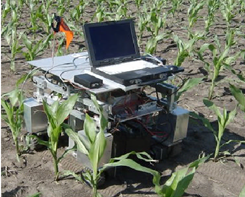
NREL has since developed a robot that builds and analyzes the efficiency of thin-film solar cells with the goal of increasing the efficiency by testing the cells in different situations.
These CIGS films have been grown by physical vapour deposition in a three-stage co-evaporation process. In this process In, Ga and Se are evaporated in the first step; in the second step it is followed by Cu and Se co-evaporation and in the last step terminated by In, Ga and Se evaporation again.
Thin film solar has approximately 15% marketshare; the other 85% is crystalline silicon Most of the commercial production of thin film solar is CdTe with an efficiency of 11%.
Crystalline Silicon
The highest efficiencies on silicon have been achieved on monocrystalline cells. The highest commercial efficiency (22%) is produced by SunPower, which uses expensive, high-quality silicon wafers. The University of New South Wales has achieved 25% efficiency on monocrystalline silicon in the lab, technology that has been commercialized through its partnership with Suntech Power. Crystalline silicon devices are approaching the theoretical limiting efficiency of 29%and achieve an energy payback period of 1-2 years.

THEORY OF SOLAR CELLS
Photo generation of charge carriers
When a photon hits a piece of silicon, one of three things can happen:
1.    the photon can pass straight through the silicon — this (generally) happens for lower energy photons,
2.    the photon can reflect off the surface,
3.    the photon can be absorbed by the silicon, if the photon energy is higher than the silicon band gap value. This generates an electron-hole pair and sometimes heat, depending on the band structure.
When a photon is absorbed, its energy is given to an electron in the crystal lattice. Usually this electron is in the valence band, and is tightly bound in covalent bonds between neighboring atoms, and hence unable to move far. The energy given to it by the photon “excites” it into the conduction band, where it is free to move around within the semiconductor. The covalent bond that the electron was previously a part of now has one fewer electron — this is known as a hole. The presence of a missing covalent bond allows the bonded electrons of neighboring atoms to move into the “hole,” leaving another hole behind, and in this way a hole can move through the lattice. Thus, it can be said that photons absorbed in the semiconductor create mobile electron-hole pairs.
A photon need only have greater energy than that of the band gap in order to excite an electron from the valence band into the conduction band. However, the solar frequency spectrum approximates a black body spectrum at ~6000 K, and as such, much of the solar radiation reaching the Earth is composed of photons with energies greater than the band gap of silicon. These higher energy photons will be absorbed by the solar cell, but the difference in energy between these photons and the silicon band gap is converted into heat (via lattice vibrations — called photonsrather than into usable electrical energy.
Charge carrier separation
There are two main modes for charge carrier separation in a solar cell:
1.    drift of carriers, driven by an electrostatic field established across the device
2.    diffusion of carriers from zones of high carrier concentration to zones of low carrier concentration (following a gradient of electrochemical potential).
The p-n junction
Main articles: semiconductor and p-n junction
The most commonly known solar cell is configured as a large-area p-n junction made from silicon. As a simplification, one can imagine bringing a layer of n-type silicon into direct contact with a layer of p-type silicon. In practice, p-n junctions of silicon solar cells are not made in this way, but rather by diffusing an n-type dopant into one side of a p-type wafer (or vice versa).
If a piece of p-type silicon is placed in intimate contact with a piece of n-type silicon, then a diffusion of electrons occurs from the region of high electron concentration (the n-type side of the junction) into the region of low electron concentration (p-type side of the junction). When the electrons diffuse across the p-n junction, they recombine with holes on the p-type side. The diffusion of carriers does not happen indefinitely, however, because charges build up on either side of the junction and create an electric field. The electric field creates a diode that promotes charge flow, known as drift current, that opposes and eventually balances out the diffusion of electron and holes. This region where electrons and holes have diffused across the junction is called the depletion layerbecause it no longer contains any mobile charge carriers. It is also known as the space charge region.
Connection to an external load
Ohmic metal-semiconductor contacts are made to both the n-type and p-type sides of the solar cell, and the electrodes connected to an external load. Electrons that are created on the n-type side, or have been “collected” by the junction and swept onto the n-type side, may travel through the wire, power the load, and continue through the wire until they reach the p-type semiconductor-metal contact. Here, they recombine with a hole that was either created as an electron-hole pair on the p-type side of the solar cell, or a hole that was swept across the junction from the n-type side after being created there.
Equivalent circuit of a solar cell

The equivalent circuit of a solar cell


The schematic symbol of a solar cell
To understand the electronic behavior of a solar cell, it is useful to create a model which is electrically equivalent, and is based on discrete electrical components whose behavior is well known. An ideal solar cell may be modelled by a current source in parallel with a diode; in practice no solar cell is ideal, so a shunt resistance and a series resistance component are added to the model. The resulting equivalent circuit of a solar cell is shown on the left. Also shown, on the right, is the schematic representation of a solar cell for use in circuit diagrams.

SILICON SOLAR CELL DEVICE MANUFACTURE

Solar-powered scientific calculator
Because solar cells are semiconductor devices, they share many of the same processing and manufacturing techniques as other semiconductor devices such as computer and memorychips. However, the stringent requirements for cleanliness and quality control of semiconductor fabrication are a little more relaxed for solar cells. Most large-scale commercial solar cell factories today make screen printed poly-crystalline silicon solar cells. Single crystalline wafers which are used in the semiconductor industry can be made into excellent high efficiency solar cells, but they are generally considered to be too expensive for large-scale mass production.
Poly-crystalline silicon wafers are made by wire-sawing block-cast silicon ingots into very thin (180 to 350 micrometer) slices or wafers. The wafers are usually lightly p-type doped. To make a solar cell from the wafer, a surface diffusion of n-type dopants is performed on the front side of the wafer. This forms a p-n junction a few hundred nanometers below the surface.
Antireflection coatings, which increase the amount of light coupled into the solar cell, are typically next applied. Over the past decade, silicon nitride has gradually replaced titanium dioxide as the antireflection coating of choice because of its excellent surface passivation qualities (i.e., it prevents carrier recombination at the surface of the solar cell). It is typically applied in a layer several hundred nanometers thick using plasma-enhanced chemical vapor deposition (PECVD). Some solar cells have textured front surfaces that, like antireflection coatings, serve to increase the amount of light coupled into the cell. Such surfaces can usually only be formed on single-crystal silicon, though in recent years methods of forming them on multicrystalline silicon have been developed.
The wafer then has a full area metal contact made on the back surface, and a grid-like metal contact made up of fine “fingers” and larger “busbars” are screen-printed onto the front surface using a silver paste. The rear contact is also formed by screen-printing a metal paste, typically aluminium. Usually this contact covers the entire rear side of the cell, though in some cell designs it is printed in a grid pattern. The paste is then fired at several hundred degrees Celsius to form metal electrodes in ohmic contact with the silicon. Some companies use an additional electro-plating step to increase the cell efficiency. After the metal contacts are made, the solar cells are interconnected in series (and/or parallel) by flat wires or metal ribbons, and assembled into modules or “solar panels”.
Light-absorbing materials
Main article: Absorption (electromagnetic radiation)
All solar cells require a light absorbing material contained within the cell structure to absorb photons and generate electrons via the photovoltaic effect. The materials used in solar cells tend to have the property of preferentially absorbing the wavelengths of solar light that reach the Earth surface. However, some solar cells are optimized for light absorption beyond Earth’s atmosphere as well. Light absorbing materials can often be used in multiple physical configurations to take advantage of different light absorption and charge separation mechanisms.

Crystalline silicon
Main articles: Crystalline silicon, Silicon, and list of silicon producers

Basic structure of a silicon based solar cell and its working mechanism.
By far, the most prevalent bulk material for solar cells is crystalline silicon (abbreviated as a group as c-Si), also known as “solar grade silicon”. Bulk silicon is separated into multiple categories according to crystallinity and crystal size in the resulting ingot, ribbon, or wafer.
1.    monocrystalline silicon (c-Si): often made using the Czochralski process. Single-crystal wafer cells tend to be expensive, and because they are cut from cylindrical ingots, do not completely cover a square solar cell module without a substantial waste of refined silicon. Hence most c-Si panels have uncovered gaps at the four corners of the cells.
2.    Poly- or multicrystalline silicon (poly-Si or mc-Si): made from cast square ingots — large blocks of molten silicon carefully cooled and solidified. Poly-Si cells are less expensive to produce than single crystal silicon cells, but are less efficient. US DOE data shows that there were a higher number of multicrystalline sales than monocrystalline silicon sales.
3.    Ribbon sili is a type of multicrystalline silicon: it is formed by drawing flat thin films from molten silicon and results in a multicrystalline structure. These cells have lower efficiencies than poly-Si, but save on production costs due to a great reduction in silicon waste, as this approach does not require sawing from ingots.
Applications and implementations

Polycrystaline photovoltaic cells laminated to backing material in a module

Polycrystalline photovoltaic cells
Main article: photovoltaic array
Solar cells are often electrically connected and encapsulated as a module. Photovoltaic modules often have a sheet of glass on the front (sun up) side, allowing light to pass while protecting the semiconductor wafers from the elements (rain, hail, etc.). Solar cells are also usually connected in series in modules, creating an additive voltage. Connecting cells in parallel will yield a higher current. Modules are then interconnected, in series or parallel, or both, to create an array with the desired peak DC voltage and current.
1.    The power output of a solar array is measured in watts or kilowatts. In order to calculate the typical energy needs of the application, a measurement in watt-hours, kilowatt-hours or kilowatt-hours per day is often used. A common rule of thumb is that average power is equal to 20% of peak power, so that each peak kilowatt of solar array output power corresponds to energy production of 4.8 kWh per day (24 hours x 1 kW x 20% = 4.8 kWh)
To make practical use of the solar-generated energy, the electricity is most often fed into the electricity grid using inverters (grid-connected photovoltaic systems); in stand-alone systems, batteries are used to store the energy that is not needed immediately.
Solar cells can also be applied to other electronics devices to make it self-power sustainable in the sun. There are solar cell phone chargers, solar bike light and solar camping lanterns that people can adopt for daily use.
References
•  ^ “NREL, DARPA Both Claim Record Solar Efficiency”. http://www.greentechmedia.com/articles/nrel-darpa-both-claim-record-solar-efficiency-1310.html.  (A better citation would be preferred here. You can help Wikipedia by providing one.)
•  ^ “Solar Spectral Irradiance: Air Mass 1.5″. National Renewable Energy Laboratory. http://rredc.nrel.gov/solar/spectra/am1.5/. Retrieved 2007-12-12.

POWER LINE COMMUNICATION – P.Kalyani & M.Manjusha

Technical Paper Title: POWER LINE COMMUNICATION

Authors:P.Kalyani & M.Manjusha, 2nd year BTech,EEE

College: Sai Spurthi Institute Of Technology, Sattupally, Khammam

Power line communication or power line carrier (PLC), also known as Power line Digital Subscriber Line (PDSL), mains communication, power line telecom (PLT), or power line networking (PLN), or Broadband over Power Lines (BPL) are systems for carrying data on a conductor also used for electric power transmission.
Electrical power is transmitted over high voltage transmission lines, distributed over medium voltage, and used inside buildings at lower voltages. Powerline communications can be applied at each stage. Most PLC technologies limit themselves to one set of wires (for example, premises wiring), but some can cross between two levels (for example, both the distribution network and premises wiring). Typically the transformer prevents propagating the signal so multiple PLC technologies are bridged to form very large networks.

INTRODUCTION
All power line communications systems operate by impressing a modulated carrier signal on the wiring system. Different types of powerline communications use different frequency bands, depending on the signal transmission characteristics of the power wiring used. Since the power wiring system was originally intended for transmission of AC power, in conventional use, the power wire circuits have only a limited ability to carry higher frequencies. The propagation problem is a limiting factor for each type of power line communications. A new discovery called E-Line that allows a single power conductor on an overhead power line to operate as a waveguide to provide low attenuation propagation of RF through microwave energy lines while providing information rate of multiple Gbps is an exception to this limitation.
Data rates over a power line communication system vary widely. Low-frequency (about 100-200 kHz) carriers impressed on high-voltage transmission lines may carry one or two analog voice circuits, or telemetry and control circuits with an equivalent data rate of a few hundred bits per second; however, these circuits may be many miles long. Higher data rates generally imply shorter ranges; a local area network operating at millions of bits per second may only cover one floor of an office building, but eliminates installation of dedicated network cabling.

BLOCK DIAGRAM

CONTENTS
•    Ultra-High-frequency communication (≥100 MHz)
•    High-frequency communication (≥MHz)
•    Medium frequency (kHz)
•    Broadband over power line (BPL)
•    Apparatus
•    Applications
•    Conclusion

Ultra-High-frequency communication (≥100 MHz)
The highest information rate transmissions over power line use RF through microwave frequencies transmitted via trasverse mode surface wave propagation mechanism that requires only a single ). An implementation of this technology called E-line has been demonstrated using a single power line conductor. These systems have demonstrated symmetric and full duplex communicationeach direction. Multiple WiFi channels with simultaneous analog television in the 2.4 and 5.3 GHz unlicensed bands have been demonstrated operating over a single medium voltage line conductor. Because the underlying propagation mode is extremely broadband, it can operate anywhere in the 20 MHz – 20 GHz region. Also since it is not restricted to <80 MHz, as is the case for high-frequency BPL, these systems can avoid the need to share spectrum with other licensed or unlicensed services and can completely avoid the interference issues associated with use of shared spectrum
High-frequency communication (≥MHz)
High frequency communication may (re)use large portions of the radio spectrum for communication, or may use select (narrow) band(s), depending on the technology.
Power line communications can also be used to interconnect home computers, peripherals or other networked consumer peripherals. Specifications for power line home networking have been developed by a number of different companies within the framework of the HomePlug Powerline Alliance, the Universal Powerline Association and the HD-PLC Alliance.
Medium frequency (kHz)
Home control (narrowband)
Power line communications technology can use the household electrical power wiring as a transmission medium. INSTEON and X10 are the two most popular[de facto standards using power line communications for home control. This is a technique used in home automation for remote control of lighting and appliances without installation of additional control wiring.
Typically home-control power line communication devices operate by modulating in a carrier wave of between 20 and 200 kHz into the household wiring at the transmitter. The carrier is modulated by digital signals. Each receiver in the system has an address and can be individually commanded by the signals transmitted over the household wiring and decoded at the receiver. These devices may be either plugged into regular power outlets, or permanently wired in place. Since the carrier signal may propagate to nearby homes (or apartments) on the same distribution system, these control schemes have a "house address" that designates the owner.
Since 1999, a new power-line communication technology "universal powerline bus" has been developed, using pulse-position modulation (PPM). The physical layer method is a very different scheme than the modulated/demodulated RF techniques used by X-10. The promoters claim advantages in cost per node, and reliability.
Medium frequency (kHz)
Home control (narrowband)
Power line communications technology can use the household electrical power wiring as a transmission medium. INSTEON and X10 are the two most popular[de facto standards using power line communications for home control. This is a technique used in home automation for remote control of lighting and appliances without installation of additional control wiring.
Typically home-control power line communication devices operate by modulating in a carrier wave of between 20 and 200 kHz into the household wiring at the transmitter. The carrier is modulated by digital signals. Each receiver in the system has an address and can be individually commanded by the signals transmitted over the household wiring and decoded at the receiver. These devices may be either plugged into regular power outlets, or permanently wired in place. Since the carrier signal may propagate to nearby homes (or apartments) on the same distribution system, these control schemes have a "house address" that designates the owner.
Since 1999, a new power-line communication technology "universal powerline bus" has been developed, using pulse-position modulation (PPM). The physical layer method is a very different scheme than the modulated/demodulated RF techniques used by X-10. The promoters claim advantages in cost per node, and reliability.
Broadband over power line (BPL)
On 14 October 2004, the U.S. Federal Communications Commission adopted rules to facilitate the deployment of "Access BPL" -- i.e., use of BPL to deliver broadband service to homes and businesses. The technical rules are more liberal than those advanced by the US national amateur radio organization, the ARRL, and other spectrum users, but include provisions that require BPL providers to investigate and correct any interference they cause. These rules may be subject to future litigation.
On 8 August 2006 FCC adopted a memorandum opinion and an order on broadband over power lines, giving the go-ahead to promote broadband service to all Americans. The order rejects calls from aviation, business, commercial, amateur radio and other sectors of spectrum users to limit or prohibit deployment until further study is completed. FCC chief Kevin Martin said that BPL "holds great promise as a ubiquitous broadband solution that would offer a viable alternative to cable, digital subscriber line, fiber, and wireless broadband solutions", and that BPL was one of the agency's "top priorities".
APPARATUS
Electrical installations, Low-voltage installations, Electrical equipment, Signals, Mains electricity supply, Industrial electrical installations, Frequencies, Electromagnetic compatibility, Electric power transmission lines, Electric cables, Communication cables, Domestic electrical installations, Industrial facilities, Domestic facilities, Business facilities
APPLICATIONS

Automotive uses
Power-line technology enables in-vehicle network communication of data, voice, music and video signals by digital means over direct current (DC) battery power-line. Advanced digital communication techniques tailored to overcome hostile and noisy environment are implemented in a small size silicon device. One power line can be used for multiple independent networks. The benefits would be lower cost and weight (compared to separate power and control wiring), flexible modification, and ease of installation. Potential problems in vehicle applications would include the higher cost of end devices, which must be equipped with active controls and communication, and the possibility of intereference with other radio frequency devices in the vehicle or other places.
Prototypes are successfully operational in vehicles, using automotive compatible protocols such as CAN-bus, LIN-bus over power line (DC-LIN) and [DC-bus]
LonWorks power line based control has been used for an HVAC system in a production model bus
CONCLUSION
Power Line Communications (PLC) is a promising emerging technology, which has attracted much attention due to the wide availability of power distribution lines. This book provides a thorough introduction to the use of power lines for communication purposes, ranging from channel characterization, communications on the physical layer and electromagnetic interference, through to protocols, networks, standards and up to systems and implementations. With contributions from many of the most prominent international PLC experts from academia and industry, “Power Line Communications” brings together a wealth of information on PLC specific topics that provide the reader with a broad coverage of the major developments within the field. Acts as a single source reference guide to PLC collating information that is widely dispersed in current literature, such as in research papers and standards. Covers both the state of the art, and ongoing research topics. Considers future developments and deployments of PLC
REFERENCES
•  Blackburn, J. L., ed (1976). Applied Protective Relaying. Newark, N.J.: Westinghouse Electric Corp., Relay-Instrument Division.
•  Carcelle, Xavier (2006) (in French). Réseaux CPL par la pratique. Paris:

Powered by WordPress | iFreeCellPhones.com has the Best Cell Phone Deals. | Thanks to PalmPreBlog.com, Find Best CD Rates and Fat burning furnace